
Guide
Set Up Your First AI Agent in a Few Minutes
In plain language, no technical background needed. This guide shows you how to set up an AI agent on your Windows PC using the terminal, and watch it complete a real task on its own. The terminal is a simple text interface built into every Windows computer. It sounds more technical than it is.
By Dr. Çağrı Üzüm, NovaManufact Automation · May 2026
Before you start
If you would rather skip the terminal entirely, you have good alternatives. If you have a Claude subscription, Claude Cowork is Anthropic's desktop app built for non-developers that does the same agentic tasks without any terminal setup. If you have a ChatGPT subscription, the Codex app is the closest equivalent. If you would rather not install a new app and are happy to use the terminal, read on.
What Is an AI Agent?
A chatbot answers questions. An AI agent does things. It reads your environment, makes decisions, and takes actions on its own, from a single instruction. You don't write code. You don't configure anything. You describe what you want, and it figures out the steps.
The same mechanism that organizes a folder of files today is what handles incoming RFQ emails, categorizes maintenance reports, and routes supplier documents in production environments.
Think of this guide as level one. What you will set up here is the simplest form of that: an agent running on your own computer, so you can see its capabilities firsthand. It is not a full production system. The next step from here is end-to-end agents that run automatically, hold memory across sessions, and connect to your existing tools and data sources.
What You Need
- A Claude Pro or Max subscription, or any ChatGPT subscription
- A Windows PC
- A few minutes
The guide below is for Claude Code. Using ChatGPT instead? The equivalent tool is OpenAI's Codex CLI. Follow OpenAI's official installation guide and continue from Step 3.
Open PowerShell
Windows has a built-in terminal called PowerShell. It looks technical, but you only need it for one command. Press Win + X and click Terminal or Windows PowerShell.
Install Claude Code
Copy and paste this command into PowerShell, then press Enter:
It might seem like nothing is happening for a few seconds but the installer runs automatically. No other setup required.
Some computers need one extra step. If you see an error about running scripts, run this first, then try the install command again:
Log In
Type claude (or codex if you are using a ChatGPT subscription) and press Enter. A browser window opens. Sign in with your account. Done. You won't need to do this again.
Give It a Task
Your agent is now active. You don't need commands or code. Just type what you want in plain English, exactly as you would tell a colleague.
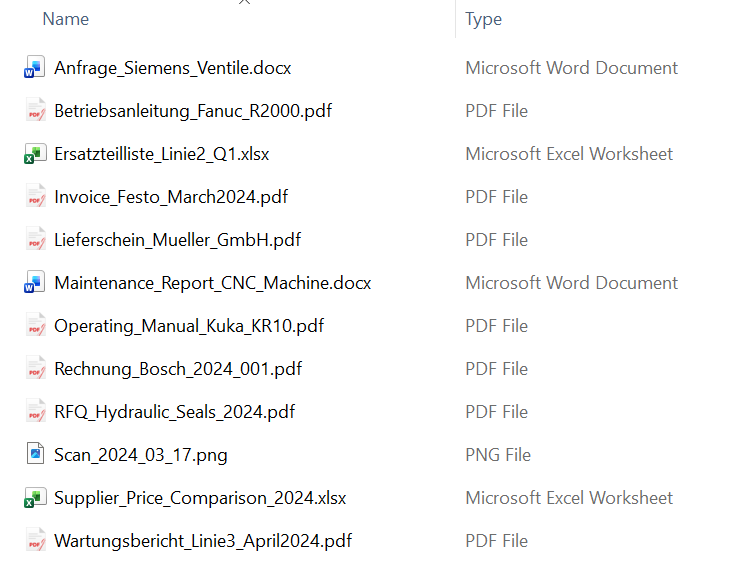
Here's the scenario we used: a folder of manufacturing documents, invoices, RFQs, maintenance reports, machine manuals, all mixed together, some in English, some in German.
Try it yourself
You don't need a test folder. Just tell Claude to work on your Downloads folder and use the same prompt below. It's usually the messiest folder on any computer and works perfectly for a first run.
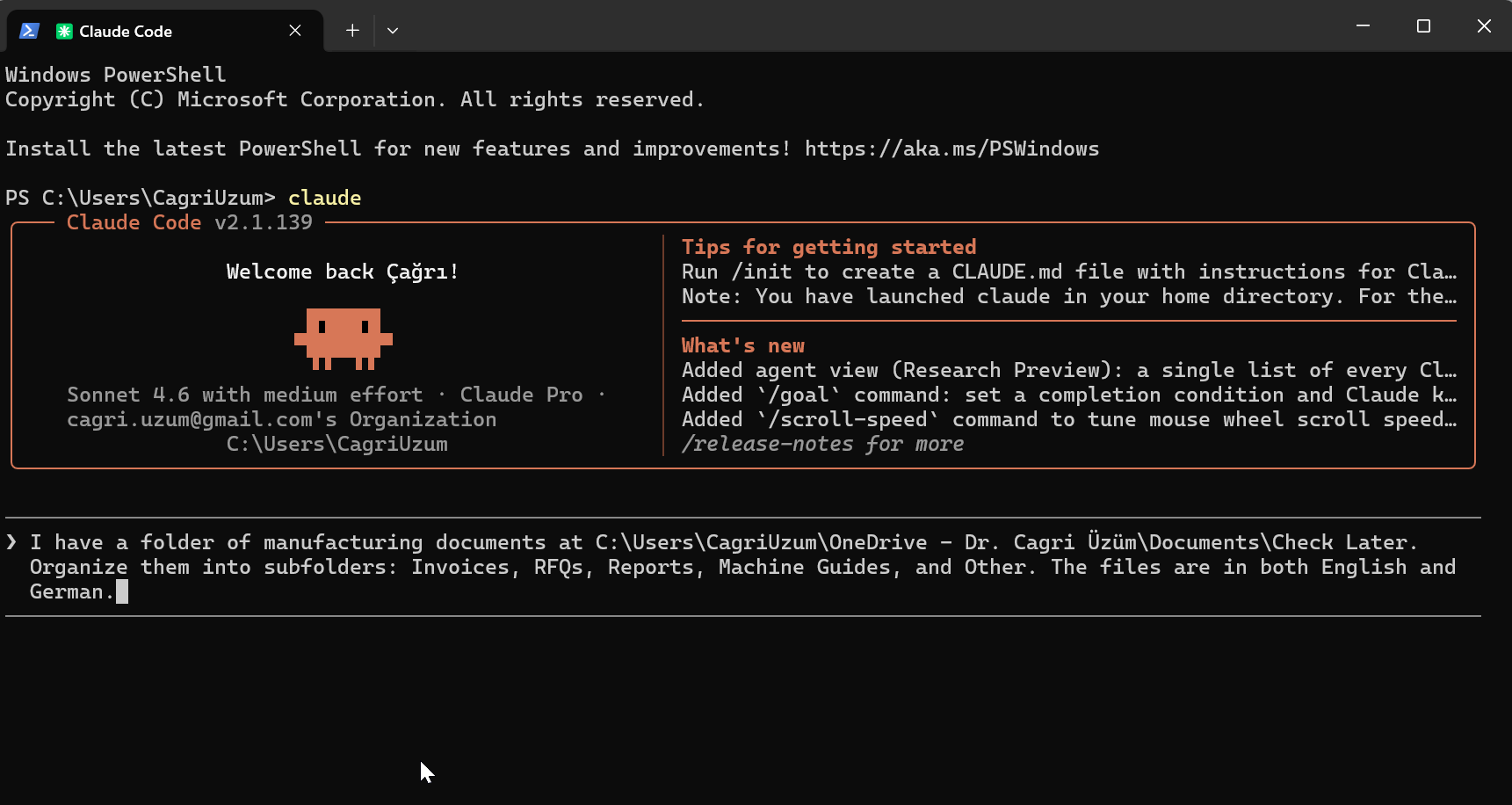
Use the prompt below or write your own task in plain language. Either way, make sure you tell the agent where your folder is.
Folder / before
Claude Code / prompt entered
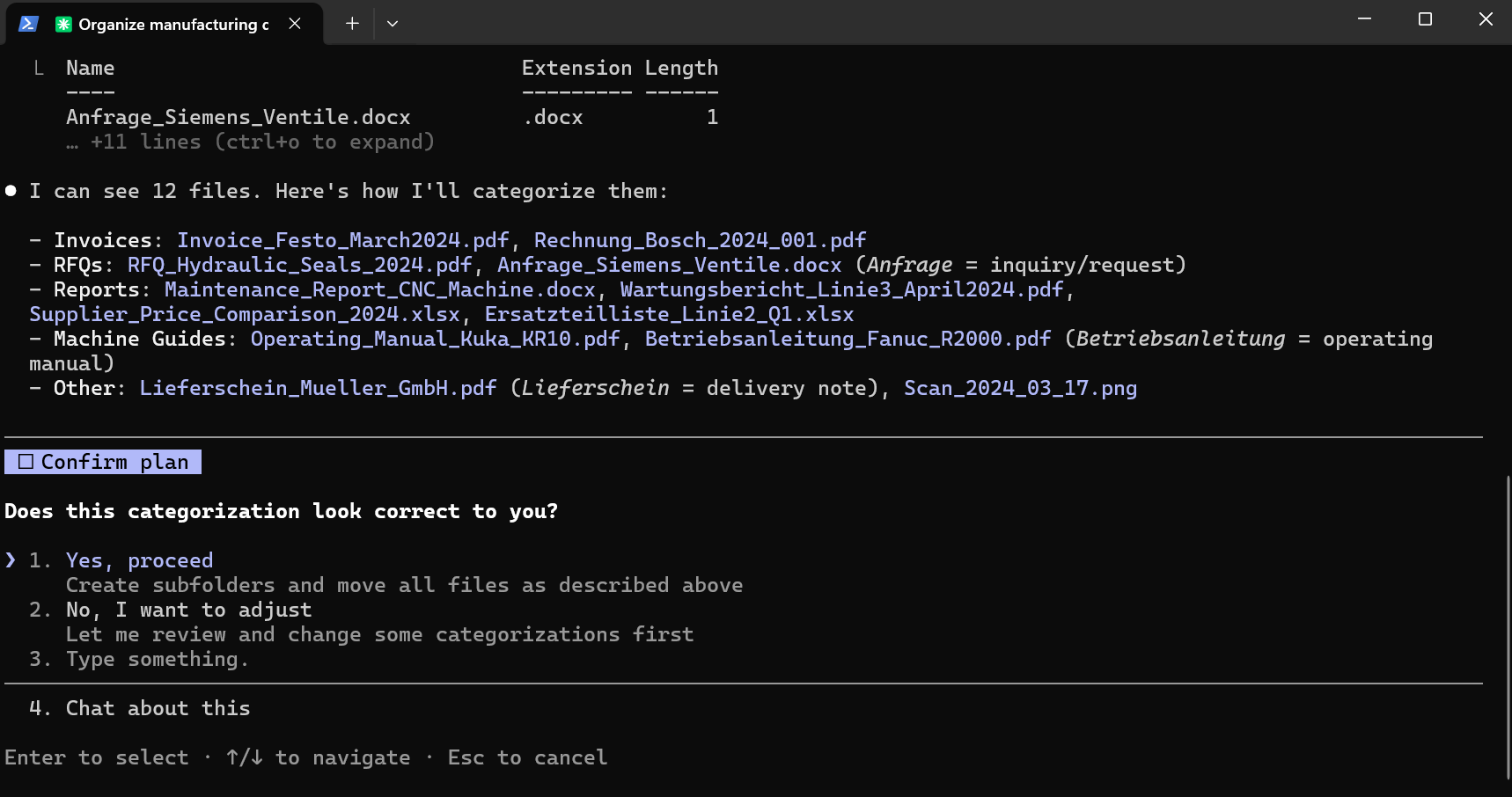
Before moving anything, Claude reads the files, works out the categories, and shows you its plan. It even explains its reasoning for the German filenames. You confirm, and it proceeds.
Claude Code / categorization plan
See the Result
Claude Code reads the filenames, understands German and English, creates the subfolders, and moves every file in seconds.
Folder / after
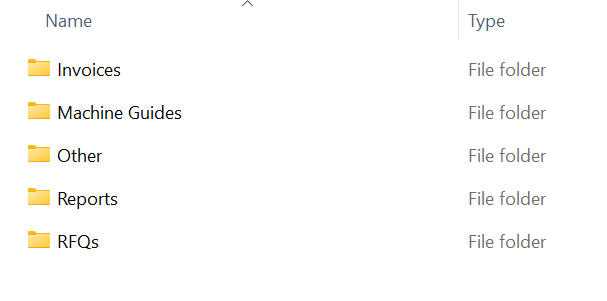
German filenames like Rechnung_Bosch, Anfrage_Siemens, and Betriebsanleitung_Fanuc were sorted alongside their English equivalents. Word documents and Excel files were handled the same as PDFs. Ambiguous files like Scan_2024_03_17 and Lieferschein_Mueller_GmbH were correctly placed in Other. No language configuration, no rules, no training.
What Just Happened?
The agent read the filenames, understood context across two languages, decided which category each file belongs to, created the folder structure, and moved everything, from a single sentence. That's what makes it an agent, not a chatbot.
The same mechanism works at scale: processing incoming supplier emails, routing maintenance requests, extracting data from RFQ documents. The instruction changes. The principle doesn't.
Using It Again
You don't need to install anything again. Next time you want to use the agent, press Win + X, open Terminal, type claude (or codex) and press Enter. Give it a task. That's it.
Ready to automate everyday workflows?
If you want to learn more about AI agents and automation and how they can handle real workflows in your business, get in touch.
Get in touch